TL;DR

Turn the school run and nap time into listening time
- Thousands of audiobooks, podcasts and originals
- Listen on your phone, tablet or Echo — also offline
- Cancel anytime
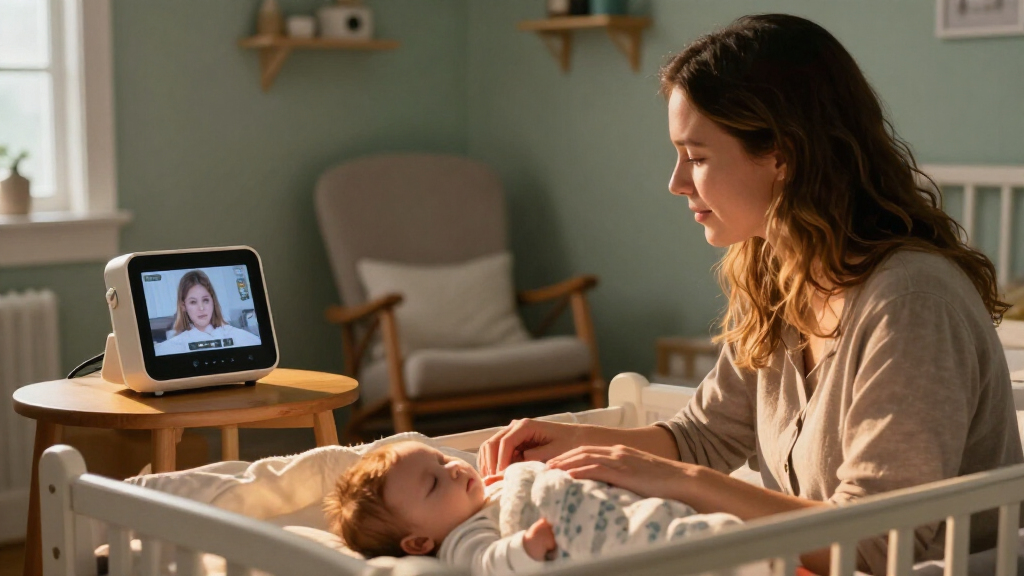
Baby monitors with video let you see a child remotely, usually through a nursery camera and a handheld parent unit, phone app, or both. Choose between a local monitor that can work without internet and a Wi-Fi model that may offer remote viewing, then compare night vision, reliability, privacy, safe placement, and subscription costs. A monitor is an observation tool, not a medical device or a substitute for safe-sleep practices.
A camera can show you a sleeping baby in crisp detail and still be the wrong monitor for your home. A Wi-Fi signal that stutters through two floors, a camera cord near the crib, or an app that requires a paid plan can matter more than a big resolution number on the box.
Baby monitors with video let caregivers see a child remotely, usually through a camera in the nursery and a handheld parent unit, a smartphone app, or both. In this guide, you’ll compare local and Wi-Fi connections, sort useful picture and sound features from flashy extras, and check privacy, placement, and ongoing costs before buying.
The goal isn’t to watch every pixel. It’s to choose a system you can use comfortably and reliably, while remembering that a monitor provides observation—not medical care or a guarantee of safety.
Choose a local parent unit if you want viewing that can work without internet; choose Wi-Fi if remote app access matters and your network is dependable.
Judge night viewing by the actual image, lens angle, and screen—not resolution claims alone.
Treat sound, movement, and temperature alerts as helpful context, not medical monitoring or emergency detection.
For connected models, check unique-password options, two-factor authentication, updates, data practices, and subscription costs.
Mount the camera according to its instructions, keep cords out of reach, follow pediatric safe-sleep guidance, and check the exact model for CPSC recalls.
Choose between a local monitor and Wi-Fi based on how you’ll watch
Baby monitors with video connect a nursery camera to either a dedicated parent unit, a phone app, or both. A local system can keep working without home internet, while a Wi-Fi system may let you check the camera away from home. The distinction affects more than convenience: it determines what you can still see when the internet, router, app, or power supply has a problem. Choose around the situations in which you most need the monitor, rather than assuming one connection type is universally better.
A dedicated monitor is often straightforward: turn on the camera and parent screen, and you have a direct viewing setup. That can suit a caregiver who wants a screen on the kitchen counter while folding laundry, without unlocking a phone or relying on an account. Local does not mean unlimited range, however. Walls and floors can weaken the signal, and interference from other electronics can cause dropouts. A monitor that works in the nursery may struggle in a basement or at the far end of a large house, so test it from the rooms where you actually spend time. If the signal is unreliable, the screen can create false reassurance or make you repeatedly reposition the unit.
Wi-Fi models send video through your network to an app, and some offer viewing when you’re away. That can be useful if one parent is on an evening shift and wants to check in from a trusted connection. The tradeoff is that remote access depends on a chain of services: the camera, router, internet connection, app, account, and sometimes the manufacturer’s cloud service. If one part is down, remote viewing may stop even if the camera itself is working. Some products combine a parent unit with app access, giving you a second way to view the camera. Check what still works if your internet goes out; a hybrid model is only a useful backup if its local functions remain available during an outage.
Use this quick comparison before you shop:
| Feature | Local parent-unit monitor | Wi-Fi monitor |
|---|---|---|
| Internet needed for viewing | Usually no | Usually yes |
| Viewing away from home | Usually no | Often, if supported |
| Main tradeoff | Range and interference | Network and account dependence |
“Usually” matters: product designs vary. Before buying, read the current manufacturer instructions to confirm setup needs, local-viewing options, app compatibility, and which features stop working during an outage. If you rent a small apartment, a simple local unit may cover your needs; if you travel often, app access could be worth the added setup. In either case, consider how you’ll respond if the connection fails: a dependable fallback may matter more than features you rarely use.
Products Worth Considering

eufy Security SoloCam E42 4-Camera Kit with HomeBase 3, 4K Solar Security Cameras

eufy Security SoloCam S340 3K Dual-Lens Solar Security Camera

eufy Security SoloCam E42 4K Solar Security Camera with AI Motion Tracking
As an affiliate, we earn on qualifying purchases.
Get a useful night view without paying for a resolution number
Baby monitors with video are easiest to use when the camera shows a clear, steady view in the lighting you actually have. Resolution matters, but lens angle, distance, screen quality, and night vision can matter just as much. Resolution describes image detail under suitable conditions; it does not guarantee that the camera is pointed at the right place, that the display can show that detail, or that the image will remain clear in a dark room. A high-resolution image can’t rescue a camera pointed at a bright window or blocked by a shelf.
Most monitors use infrared night vision, which typically turns the nursery into a monochrome scene. You may see the curve of a blanket and the outline of a crib, but not the room’s soft yellow or blue colors. The useful question is whether the image lets you distinguish the position and movement you need to observe—not whether it looks like daytime footage. Before choosing a model, check whether you can make out the details you care about on the parent screen or phone—not just in the manufacturer’s bright product photos.
Lens angle involves a practical tradeoff. A wide view may capture the crib and doorway at once, reducing the chance that a child moves out of frame, but it can make your baby look smaller on screen. A narrower view may show more detail in one part of the room but miss the rest. For example, if the crib sits close to a wall, a wide lens may cover it comfortably; in a long room, you may prefer a camera you can aim or adjust remotely. Pan-and-tilt can help you change the view, but it also adds controls to learn and does not eliminate blind spots if the camera is aimed poorly.
Try this short comparison when testing picture features:
- Check the night image with the nursery lights off and the door in its usual position. A door left open or closed can change how much light reaches the camera.
- Look at the full crib area and note any blind spots caused by furniture or camera angle. A broad view is useful only if important parts of the sleep area remain visible.
- Compare screen size and detail at the distance where you’ll actually watch. A detailed image on a phone may be less convenient than a dedicated screen you can glance at across a room.
- Ask whether you need recording or simply a live view; recording may add storage limits or subscription fees. Recorded clips can be useful for reviewing an event, but they also create more data to manage and do not replace checking in real time.
As a real-world test, place the camera where the instructions allow, then view the image from your usual spot on the sofa. If the baby appears as a tiny shape or the picture flickers when someone walks through the hall, those details matter more than a “HD” label. Features and image quality vary by model, so verify current product specifications rather than treating marketing terms as a promise. If you can, assess the live image in your own room before committing; lighting, distance, and the display you use all affect what the resolution figure means in practice.
Separate helpful alerts from features that promise too much
Video monitors can provide sound, two-way audio, room-temperature readings, and motion or sound alerts, but those features offer context—not a medical assessment. An alert can tell you that the room got noisy; it cannot reliably diagnose a health problem. Treat smart notifications as a convenience, not a replacement for checking your child or following pediatric guidance. This distinction matters because an alert may be delayed, missed, or triggered by something unrelated, while silence from the monitor does not prove that everything is fine.
Two-way audio can help you speak from another room, though sound may arrive with a slight delay or come through a small speaker. It can be useful for soothing a child or communicating with another caregiver, but it is not the same as being physically present when a child needs attention. Sound-activated screens can stay dark until the monitor detects noise, which saves battery and makes a quiet room easier to watch. But a dog bark, a door closing, or a passing truck may trigger an alert. If you get several false alarms during an ordinary evening, adjust the settings if the model allows it. Turning sensitivity down may reduce interruptions, but could also mean quieter sounds are less likely to trigger a notification, so consider whether the live audio remains available.
Temperature readings can offer a rough sense of the room, but a monitor sensor is not a substitute for a separate, appropriately placed room thermometer. Its location near electronics, a wall, or airflow may affect the reading. A sensor reports conditions where the camera is, not necessarily the temperature throughout the room or where the baby is sleeping. If the screen reports a sudden change, check the room directly instead of assuming the monitor has measured the whole space perfectly.
Smart alerts and “AI” features may claim to identify types of sound or movement and reduce nuisance notifications. Their performance differs across products and real-life conditions. A fan, soft music, or a closed door can change what the microphone picks up. For example, a caregiver might appreciate a cry notification while cooking, but still keep the monitor’s live view available rather than relying on an alert alone. These features can be helpful when they reduce the need to watch the screen continuously, but they should not become the only way you learn that your child needs attention.
A baby monitor is for observation. Don’t treat ordinary video, sound, or temperature alerts as breathing detection or medical advice.
If you are worried about a child’s breathing or health, ask your pediatric care team what to do. Don’t infer medical protection from words such as “smart,” “AI,” or “wellness” on a product listing. Check whether a device has the relevant regulatory clearance for a claimed medical use, and follow the stated limits; ordinary video monitors should not be described as preventing SIDS or reliably detecting breathing problems.
Protect your camera account and check the fine print
Internet-connected baby monitors add account and network security to your buying checklist. A monitor’s safety depends on the device, your password, your home Wi-Fi, software updates, and the maker’s data practices. No connected product is risk-free, and a “secure” label alone doesn’t tell you how the camera stores or shares video. The practical implication is that choosing an app-based monitor means taking on ongoing account and update responsibilities, not just installing a camera once.
Look for a unique account password, two-factor authentication where available, encrypted connections, regular software updates, and clear information about data storage and sharing. A password you already use for email is a poor shortcut: if one service has a breach, reused credentials can expose other accounts. Secure the home Wi-Fi network as well, and install updates instead of leaving the camera on old software indefinitely. These steps reduce avoidable risks, but they do not guarantee that a manufacturer’s systems or services will never have a problem.
Before buying, check whether live viewing requires a cloud account, whether video is saved by default, and how long the manufacturer says it will support the app and software. Policies and support periods differ and can change, so read current product documentation. Some recording or advanced alert features require a subscription; others may be available without one. Compare the total cost over the time you expect to use the system, not just the price on the shelf. Also consider what happens if you stop paying: you may lose recordings or advanced functions even if basic live viewing remains available.
For example, a family may only need a live image at home and decide that a local parent unit is simpler than creating app accounts for several caregivers. Another family may value remote viewing but disable cloud recording and set up a unique password and two-factor authentication. Neither choice is automatically best for everyone; the tradeoff is convenience versus more connected services to manage. Limiting accounts and stored video can reduce the amount of information exposed, while remote access can be worthwhile when caregivers genuinely need to check from outside the home.
- Confirm the basics: app compatibility, warranty, and support information.
- Check the recurring cost: cloud storage, advanced alerts, or other paid features.
- Review privacy details: how video is handled and which settings you control.
Consumers and regulators have paid more attention to connected-device security and data handling, but protections still vary by brand. If a company’s current documentation doesn’t clearly explain updates, account security, or video storage, treat that uncertainty as part of the buying decision. A lower-cost or feature-rich model may not be a good value if the app is difficult to secure, its ongoing support is unclear, or the functions you want depend on a recurring fee.
Place the camera for a clear view and keep cords out of reach
Place a video monitor where it gives you a useful view while keeping the camera, mount, and cords well away from a child’s reach. Follow the product’s mounting and distance instructions, and keep cords clear of the crib. A monitor can help you observe a room; it does not make an unsafe sleep setup safe or replace checking on your child. Placement is a tradeoff: a closer or more flexible camera angle may improve the image, but it is not worth putting equipment or a cord within reach.
Before the baby arrives, test the camera from its intended position and look for blind spots around the crib. Secure the mount as the manufacturer directs and check that the cord cannot dangle into the sleep space. A tempting quick fix—resting the camera on the crib rail—can put equipment where a child may reach it later. Don’t attach accessories to the crib unless the product instructions and relevant safety guidance specifically allow it. A stable, approved mount also helps keep the view consistent, so you are less likely to make improvised adjustments after the room is in use.
Think about how the room will change as your child grows. A camera that sits beyond reach for a newborn may be accessible once the child can stand or climb. Recheck the setup as the room changes, and adjust it using the manufacturer’s instructions. Keep the camera and accessories away from heat sources and avoid covering or modifying the unit, including its infrared components. As your child’s mobility changes, a previously safe cord route or mount position may no longer be safe, so reassess rather than relying on the original installation indefinitely.
One practical example: if you move the crib to make room for a dresser, the old camera angle may now point at the furniture instead of the sleep area. Rather than stretching the cord across the floor or attaching it somewhere improvised, follow the mounting directions and choose a position with a safe cable route. If you can’t get both a clear image and safe placement, prioritize safety and find another approved mounting location. A slightly less complete view is preferable to creating a reachable cord hazard.
A camera can show you what’s happening in the room; it cannot make the sleep space safe by itself.
Follow current safe-sleep advice from your pediatric care team and applicable public health guidance. The monitor is one tool in your household, not a substitute for that advice. Check the CPSC recall database for the exact monitor model before purchase and again if you already own it; keep the model information and manufacturer notices handy so you can respond if a recall is announced.
Use this five-step check before you buy
The best way to choose baby monitors with video is to start with your daily routine, then test the connection, image, safety, and total cost against it. A short checklist can prevent you from paying for features you won’t use—or discovering a range problem after the camera is mounted. Treat manufacturer claims as things to verify, not as a substitute for how the product behaves in your home. The point is to identify which compromises you can live with before you buy, rather than judging a monitor by its longest feature list.
- Choose where you’ll watch. Decide whether a parent unit, phone app, or both suit your routine. If you need internet-free viewing, check that the model supports it. A dedicated screen may be easier to glance at during chores, while a phone can be more convenient away from home but depends on app access and connectivity.
- Test connection needs. Consider floors, walls, and interference between the nursery and your usual viewing spot. Advertised range reflects favorable conditions, so it may not match a home with thick walls. A connection that works only when you stay near the nursery may be less useful than a simpler monitor with dependable coverage where you spend your evenings.
- Check the real picture. Look at night vision, lens angle, and screen size from the place you’ll use the monitor. Think about whether you need a whole-room view or a closer view of the crib; each choice affects how much detail you can see and how much of the room fits on screen.
- Review privacy and extras. Check passwords, two-factor authentication, updates, account requirements, and the cost of subscriptions. Ask what functions remain if you decline a plan, stop paying, or lose internet access, so the purchase still meets your basic needs under less-than-ideal conditions.
- Plan a safe installation. Follow the mounting instructions, keep cords out of reach, check age-appropriateness as your child grows, and verify the model for CPSC recalls. If the only position that gives a perfect image creates a cord or reach concern, choose a safer position and reconsider the camera setup.
Imagine you live in a two-story home, often cook in the kitchen, and sometimes travel overnight. A local parent unit might be dependable for everyday use, while an app could make remote checks convenient; a hybrid model could serve both needs if its offline functions are clear. If your Wi-Fi is already unreliable upstairs, remote access may add frustration instead of comfort. This example shows why the same monitor can be a good fit for one household and a poor fit for another: the important question is whether the connection matches your routine in the places you need it.
Also check battery life, portability, screen size, number of supported cameras, warranty, app compatibility, and the maker’s software support information. A family with twins may value split-screen viewing, while a caregiver who moves between rooms may care more about a portable screen. What readers should compare is the complete setup—camera, display, connection, subscriptions, and mounting—not just a single feature on the box. For instance, a portable screen is less helpful if its battery routinely needs charging during the hours you rely on it.
Finally, verify current product details with the manufacturer. Features, app policies, and software support can change after publication, and a higher price does not automatically mean better reliability or privacy. Make your choice around the job you need the monitor to do, and weigh each extra against its cost, setup burden, and effect on reliability.
Frequently Asked Questions
Can I use a video baby monitor without Wi-Fi?
Many dedicated parent-unit monitors work without home internet because the camera connects directly to the screen. Some app-based models need Wi-Fi for setup or viewing, so check the specific model’s instructions before buying.
Can I check the camera when I’m away from home?
Usually, you can only view remotely if the monitor supports internet access and its camera, app, account, and internet connections are working. Confirm whether remote viewing is included or depends on a subscription.
Are baby monitors with video secure?
Security depends on the camera, account settings, home network, software updates, and manufacturer’s data practices. Use a unique password, turn on two-factor authentication if offered, and check how the maker handles and stores video.
Does a video monitor detect breathing problems or prevent SIDS?
No ordinary video monitor should be treated as a reliable breathing detector or as a way to prevent SIDS. A monitor does not replace safe-sleep practices or medical advice; ask your pediatric care team about health concerns.
How far away can a monitor work?
Advertised range is generally measured in favorable conditions, and walls, floors, and interference can shorten it in your home. Test the connection from the places where you expect to use the parent unit.
Do I need to pay a monthly subscription?
Some monitors charge for cloud video storage or advanced alerts, while basic live viewing may be included. Check the current plan details and compare the total cost over the period you expect to use the camera.
Conclusion
Choose the monitor that fits your real routine: where you’ll watch, whether you need internet-free viewing, and how much app access or recording is worth to you. Then check night vision, privacy, total cost, safe mounting, and the current CPSC recall information for the exact model.
Keep one thought in view: the camera can show you the nursery, but your judgment, safe setup, and pediatric guidance still lead the way.