
To guarantee emergency responders have quick access to your crucial health info, set up your Medical ID on your smartphone now. On an iPhone, open the Health app, tap your profile, then select Medical ID to input details like allergies, medications, and emergency contacts, making sure “Show When Locked” is enabled. Android users can use Google Fit or device settings for similar setup. Taking these steps now helps you stay prepared; discover more tips to keep it up-to-date.
Key Takeaways
- Access the Health app (iPhone) or Google Fit (Android) to input your medical details and emergency contacts.
- Fill out critical health info such as allergies, medications, conditions, and blood type for quick reference.
- Enable “Show When Locked” to ensure your Medical ID is accessible from the lock screen during emergencies.
- Regularly update your Medical ID to keep information current and accurate.
- Verify your Medical ID is complete and easily accessible to ensure first responders can find vital health info quickly.
Have you ever considered how quickly critical health information can be accessed in an emergency? In those pivotal moments, every second counts. If you’re ever unconscious or unable to communicate, first responders need immediate access to your medical details to provide the right care. That’s where the Medical ID feature on your smartphone becomes invaluable. Setting it up before you need it can make a life-saving difference.
Most smartphones, whether iPhone or Android, offer built-in options to create a Medical ID profile. On an iPhone, you can add your medical conditions, allergies, medications, blood type, emergency contacts, and other essential information. This profile can be accessed from the lock screen without unlocking your phone, guaranteeing emergency personnel get the data they need without delay. Android phones have similar features, often integrated into the Contacts or Health apps, allowing you to input your health details and designate emergency contacts. The key is to make sure this information is complete, accurate, and easily accessible.
Most smartphones let you create a Medical ID with vital info and emergency contacts for quick access during emergencies.
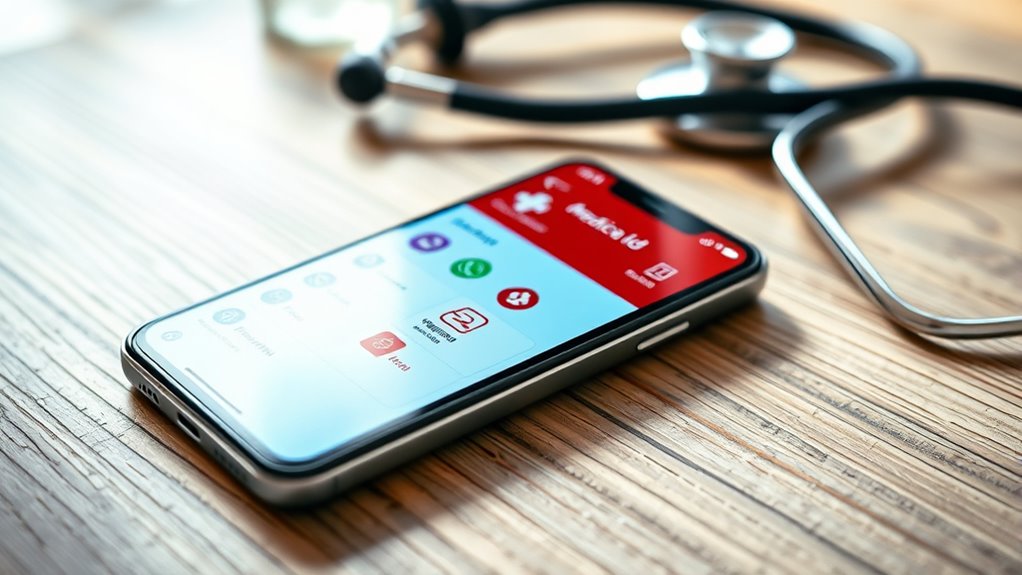
Getting started is straightforward. For iPhone users, open the Health app, tap on your profile picture, and select “Medical ID.” From there, you can fill in your details—think of it as creating a digital health passport. Be thorough but concise; include conditions like diabetes or heart issues, allergies to medications or foods, and any medications you’re taking regularly. Don’t forget to add emergency contacts, preferably multiple, so responders can quickly reach someone you trust. Once saved, ensure that “Show When Locked” is enabled. This setting allows anyone to view your Medical ID from the lock screen, which is essential during emergencies.
On Android devices, you can access similar features through the Google Fit app or your device’s health settings. Input your vital health information and emergency contacts there. Some Android devices also support adding emergency information directly to the lock screen via device security settings. Whichever platform you use, the goal is to keep this information up-to-date and easily accessible at all times.
Frequently Asked Questions
Can I Customize My Medical ID Information for Different Emergencies?
Yes, you can customize your Medical ID information for different emergencies. You just need to update your Medical ID settings on your smartphone regularly. Add or modify details like allergies, medications, or emergency contacts to suit specific situations. This way, first responders get accurate info quickly. Make sure to review and update your Medical ID periodically, especially if your health status or contact details change.
Is Medical ID Accessible Without Unlocking My Phone?
Think of your phone as a secured treasure chest; your Medical ID is a hidden key accessible without unfastening. Yes, medical info can be viewed from the lock screen, like a secret message revealed in a flash. Just make certain you’ve enabled this feature, so first responders can quickly find essential details. This way, your critical health info is always within reach, even when your phone’s security keeps it locked tight.
How Do I Update My Medical ID Securely?
To update your Medical ID securely, open your health app or medical ID app on your phone. Tap edit or update, then carefully change the necessary details. Make sure you’re on a trusted device and connection to avoid security risks. Save your changes, and double-check that your updated info is correct. This way, your Medical ID stays current and protected, ready for emergencies.
Can I Include Allergies and Medications in My Medical ID?
Absolutely, you can include allergies and medications in your Medical ID, because who wouldn’t want their phone to spill all their health secrets in an emergency? Just tap “Edit” in your medical info, add your allergies and meds, and voilà—your phone becomes your personal health spy. It’s like having a tiny, helpful doctor in your pocket, ready to spill the beans when you need it most.
Does Medical ID Work Internationally on Different Smartphones?
Medical ID can work internationally, but it depends on the device and its settings. If the person nearby has an iPhone, they can access your Medical ID from the lock screen even if they’re outside your country. For Android devices, compatibility varies, and some may not display Medical ID without specific app setups. To guarantee accessibility, set up your Medical ID correctly and inform trusted contacts about it.
Conclusion
By setting up your Medical ID now, you’re building a safety net that catches you before you fall. Think of it as planting a sturdy tree—you hope you’ll never need its shade, but you’re grateful it’s there when the storm hits. Don’t wait for an emergency to realize the importance of this hidden guardian. Prepare today, and let your phone become a silent hero, ready to whisper crucial info when seconds count and hope is all you have left.