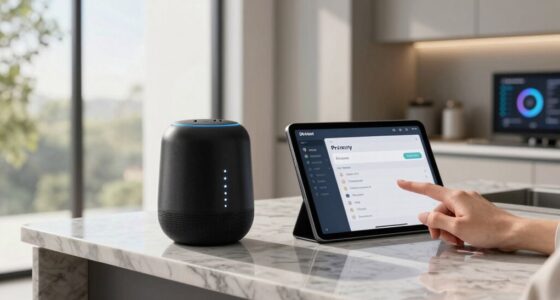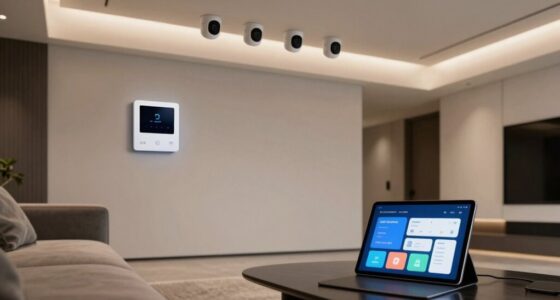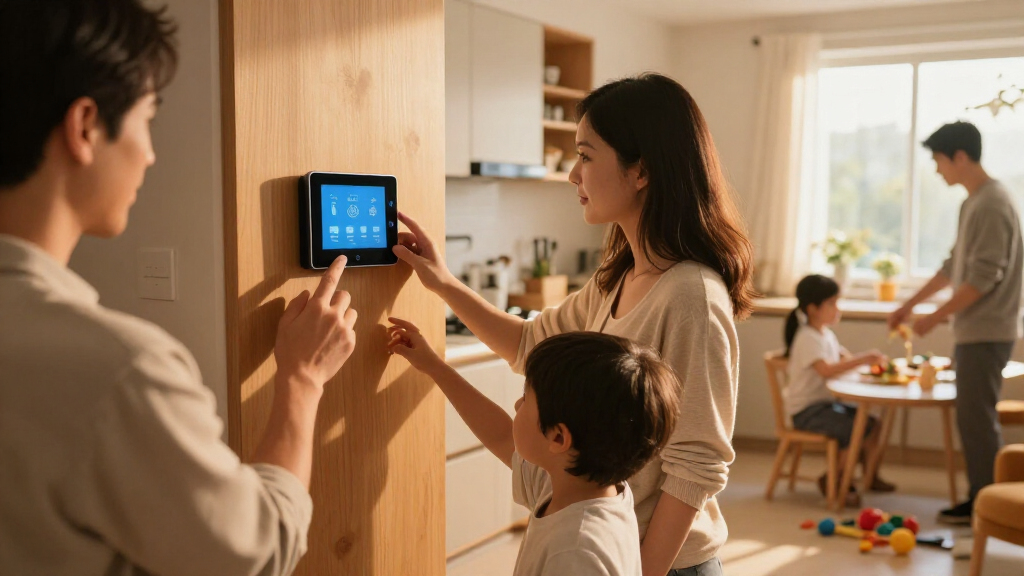

Choose and set up family-friendly smart home devices by checking compatibility, placing devices safely, and configuring access and privacy settings. This guide is for households new to smart home technology; basic smartphone and Wi-Fi skills are enough. Plan for about 1-2 hours, depending on how many devices you install.

Turn the school run and nap time into listening time
- Thousands of audiobooks, podcasts and originals
- Listen on your phone, tablet or Echo — also offline
- Cancel anytime

Amazon Echo Show 15 (2nd Gen) 15.6-inch Full HD Smart Display with Fire TV and Alexa
- ✔ Display: 15.6-inch Full HD, 1920 × 1080
- ✔ Dimensions: 16.1 × 10.1 × 1.4 inches
- ✔ Weight: 4.96 lb
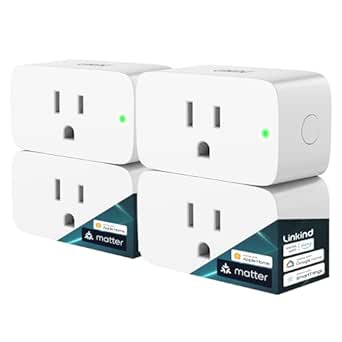
Linkind Matter Smart Plug, 4-Pack
- ✔ Pack quantity: 4 plugs
- ✔ Plug type: Type A
- ✔ Maximum load: 15 A; 1800 W

Amazon Echo Show 5 Smart Display (Newest Model), Charcoal
- ✔ Display: 5.5-inch touchscreen
- ✔ Dimensions: 5.8 × 3.6 × 3.2 inches
- ✔ Weight: 16.1 oz
Difficulty: Beginner | Time: 1-2 hours
What You’ll Need
Tools & Materials:
- Smartphone or tablet with the device maker’s app
- Reliable home Wi-Fi and the network password
- Smart speaker or display, smart lights, plugs, or sensors you plan to install
- Manufacturer instructions and any required mounting hardware
Knowledge:
- Basic use of a smartphone and home Wi-Fi
- Ability to access the router settings or ask the account holder for help
Check each product’s age guidance, power requirements, and Wi-Fi compatibility before buying. Many devices require a 2.4 GHz network, a hub, or a separate account. Keep passwords private and save receipts and setup details where an adult can find them.
Amazon Echo Show 15 (2nd Gen) 15.6-inch Full HD Smart Display with Fire TV and Alexa
When a household needs one visible place for schedules, smart home controls, and entertainment, the Echo Show 15 is the strongest fit in this lineup. Its 15.6-inch Full HD screen is large enough to serve as a shared focal point, and the choice of portrait or landscape mounting gives families some flexibility over where it fits. Built-in Fire TV adds a different kind of household utility: the screen can support streaming as well as everyday organization.Its smart home connections are another reason it ranks above the Echo Show 5. With Zigbee, Matter, and Thread Border Router support, it can serve as a more capable foundation for compatible devices. The 13 MP camera includes auto-framing and a physical privacy shutter, which may suit family video calls while giving household members a direct way to cover the camera. Compared with the Linkind plugs, the Show 15 is a more visible, versatile hub, but it cannot automate a lamp by itself.That broad role comes with a space commitment: the display is nearly 16 inches wide and weighs 4.96 pounds, so a suitable wall location and Wi-Fi setup matter. Families who mainly want hands-free control in a small room can spend less space on the Echo Show 5, while those seeking only plug-in automation may find the Linkind pack simpler. Some Alexa skills and services may also require subscriptions or fees.
Pros:
- Large Full HD screen can make shared household information easier to see.
- Works with Zigbee, Matter, and Thread-compatible smart home devices.
- Built-in Fire TV adds streaming to its organizing and control roles.
- 13 MP camera has auto-framing and a physical privacy shutter.
Cons:
- Its large, heavier design needs a deliberate mounting location.
- Requires Wi-Fi and does not support ad-hoc networks.
- Some skills and services may require subscriptions or other fees.
Best for: Families who want a shared wall-mounted screen for household organization, compatible smart home controls, video calls, and streaming.
Not ideal for: Households short on wall space, without reliable Wi-Fi, or looking only for an inexpensive way to automate a few plug-in devices.
Bottom line: For a household that will use a shared screen, the Echo Show 15 offers the broadest mix of organization, entertainment, and smart home connectivity here.
“For a household that will use a shared screen, the Echo Show 15 offers the broadest mix of organization, entertainment, and smart home connectivity here.”
Linkind Matter Smart Plug, 4-Pack
For families who want useful automation without installing a display, the Linkind Matter Smart Plug four-pack tackles a more focused job. Put a compatible lamp or appliance on a schedule, control it by voice, or switch it remotely. That can make a familiar device easier to include in a household routine, without replacing it. Unlike either Echo Show, this pick is about controlling powered devices rather than providing a shared screen, camera, or entertainment center.Its appeal is the range of supported ecosystems: Apple Home, Alexa, Google Home, SmartThings, and the AiDot app are listed. Local network control during internet outages is a useful distinction for household routines that should still work when the wider connection is down. The four plugs also make it easier to address several rooms than buying a single smart plug. However, compatibility is conditional: Apple Home, Alexa, Google Home, and SmartThings require a Matter-certified hub or controller, while the plug itself needs 2.4 GHz Wi-Fi and an IPv6 network.We would choose this over the Echo Show 5 when the main goal is scheduled control of lamps or compatible appliances, and over the Show 15 when a big display would go unused. Families should skip it if their network or platform setup does not meet its requirements, or if they expect it to make an appliance smart beyond on/off control. Short-circuit and overload protection are listed, but the maximum load is 15 A and 1800 W, so buyers need to check the appliance requirements.
Pros:
- Four plugs can extend automation to multiple rooms or devices.
- Supports Apple Home, Alexa, Google Home, SmartThings, and AiDot, subject to setup requirements.
- Scheduling, timers, remote control, and voice commands cover common household routines.
- Local network control can continue during internet outages.
Cons:
- Requires 2.4 GHz Wi-Fi and an IPv6 network.
- A Matter-certified hub or controller is required for several supported platforms.
- Maximum supported load is 15 A and 1800 W; appliance compatibility needs checking.
Best for: Households that want to schedule and voice-control several compatible plug-in devices across a supported smart home platform.
Not ideal for: Buyers without 2.4 GHz Wi-Fi and IPv6, or those who want a display, video calling, or smart home control without checking hub requirements.
Bottom line: Choose the Linkind pack when practical plug-in automation matters more to your family than a smart display or video calls.
“Choose the Linkind pack when practical plug-in automation matters more to your family than a smart display or video calls.”
Amazon Echo Show 5 Smart Display (Newest Model), Charcoal
The Echo Show 5 is the space-conscious display in this group. Its 5.5-inch touchscreen takes up far less room than the Echo Show 15, making it better suited to a bedside table, kitchen counter, or other spot where a large wall display would feel out of place. Alexa voice control, photo display, news and weather, and streaming make it a compact source of quick household information.A built-in 2 MP camera supports video calls and viewing compatible cameras, while the camera shutter and camera-off controls offer ways to limit access. That makes it a more private-feeling choice for a shared bedroom or family space than a camera with no physical cover. But the smaller screen is a real tradeoff: compared with the Show 15, it is less suited to displaying information for several family members at once. And unlike the Linkind plugs, it does not directly add scheduled on/off control to lamps or appliances.We would put it on a shortlist if a compact Alexa display and calls are the priorities. Its recycled polyester fabric and recycled aluminum are useful material details, though they do not change its main role. Families should account for its Wi-Fi limitations and potential fees for some services. The Show 15 is the stronger shared hub, and the Linkind pack is the clearer automation tool, so this model earns its place through convenience in tight spaces.
Pros:
- Compact touchscreen fits small surfaces more easily than the Echo Show 15.
- Built-in camera supports video calls and compatible camera viewing.
- Physical camera shutter and microphone/camera-off button provide privacy controls.
- Uses recycled polyester yarn and recycled aluminum, with recyclable packaging.
Cons:
- The 5.5-inch display is less useful for shared information than the Echo Show 15.
- Some Alexa skills and services may require subscriptions or other fees.
- Does not support ad-hoc Wi-Fi networks.
Best for: Families who want an Alexa screen for quick information and video calls in a bedroom, small kitchen, or other limited space.
Not ideal for: Households seeking a prominent shared schedule board, broad smart home hub connectivity, or direct plug-in automation.
Bottom line: The Echo Show 5 is the sensible compact pick when a small screen and calls are more useful than a family command center.
“The Echo Show 5 is the sensible compact pick when a small screen and calls are more useful than a family command center.”
As an Amazon Associate we earn from qualifying purchases.
Before You Start
Pick a small, useful first project, such as a lamp controlled by an adult-managed smart plug or a shared voice assistant for timers. Decide which adult owns the account and who may control each device. Do not place cameras or microphones in bathrooms or bedrooms without a clear, household-wide reason and agreement. Keep cords, small parts, and powered devices away from young children, water, and heat.
Step-by-Step Instructions
Step 1: Choose one family need
Write down one routine you want to make easier, such as turning off living-room lights, setting a kitchen timer, or checking whether the front door is locked. Ask the people who will use the device what would help them. Choose a task that does not require children to manage security settings or make purchases.
Tip:Start with one room and one routine. Adding many devices at once makes setup and troubleshooting harder.
Check: You can describe the intended benefit in one sentence and identify who will use the device.
Step 2: Check device and network compatibility
Read the product specifications and confirm that the device works with your phone, Wi-Fi band, smart home platform, and any hub you already own. Check whether it needs a subscription for features you plan to use. Compare the product’s microphone, camera, location, and data-sharing features with your household’s privacy preferences.
Tip:Do not assume two products work together because they share a brand or voice assistant. Look for explicit compatibility details in the product information.
Check: You have confirmed the device can connect to your network and perform the feature you want without an unplanned hub or subscription.
Step 3: Choose a safe installation spot
Place the device where adults can reach its controls and where children cannot pull it down, chew cords, or reach hot surfaces. Use the supplied mounting hardware and follow the manufacturer’s placement instructions. For plugs, use only devices rated for the appliance and avoid overloaded outlets, heaters, or equipment that must not be switched off unexpectedly.
Tip:Keep cameras pointed only at the intended area, and avoid capturing neighbors’ windows or private family spaces.
Check: The device is stable, its cord is secured, and its position follows the product’s safety instructions.
Step 4: Install the maker’s app and create an adult account
Download the official app from your phone’s app store. Create or sign in to an adult-controlled account using a unique password, then turn on multifactor authentication if available. Review account recovery options and avoid using a child’s email address or a shared password that is used for other services.
Tip:Grant only the phone permissions the device needs. For example, location access may be required for setup but not for everyday operation.
Check: The app opens under the adult account, and you know how to recover access if the phone is lost.
Step 5: Connect the device and update it
Follow the app’s setup prompts to connect the device to the correct Wi-Fi network. Enter the network password in the app, not into an unverified message or webpage. Once connected, install any available firmware update and wait for the device to finish restarting before changing settings.
Tip:If setup fails, keep the phone near the device and router. Avoid unplugging the device while an update is in progress.
Check: The app shows the device as online, and any available update has completed.
Step 6: Set household access and privacy controls
Open the app’s account, family, or sharing settings. Give each adult their own access where possible, and grant children only the controls they need, such as operating a light or asking for a timer. Turn off voice purchases, restrict explicit content, review voice recording retention, and disable camera or microphone features that your family does not need.
Tip:Use the device’s physical microphone mute or camera shutter when you want a visible, reliable privacy control.
Check: Each household member has an appropriate access level, and purchase, content, and recording settings match your family rules.
Step 7: Create one simple routine and test it
Use the app to create a single routine with a clear name and a limited action, such as turning off a lamp at bedtime. Check the schedule, room, and devices included before saving. Test the routine from the app and, if relevant, by voice; tell family members the exact phrase or control to use.
Tip:Avoid routines that unlock doors, disable alarms, or start appliances without an adult confirmation.
Check: The routine runs as intended, and each person who needs it can trigger it without changing account settings.
Step 8: Agree on use and review the setup
Explain to children which devices listen, record, or share information and when they may use them. Set a simple rule for voice assistants and cameras, such as asking before recording or using the mute button during private conversations. After a few days, review what worked and remove unused access, routines, or device features.
Tip:Revisit settings when a child gets a new device, a guest needs access, or the product receives a major update.
Check: Household members know how to operate the device, how to mute or disable it, and whom to ask for changes.
Common Mistakes to Avoid
- Buying a device before checking Wi-Fi or platform requirements. — Read the compatibility details and confirm whether the product needs 2.4 GHz Wi-Fi, a hub, or a subscription before purchasing.
- Giving children the main account password. — Use account sharing or household profiles with limited permissions, and keep the adult account credentials private.
- Placing a device where children can reach cords, small parts, or a camera view into private areas. — Choose a stable, supervised location, secure cords, and review the camera’s field of view before enabling it.
- Creating complicated routines before testing basic device control. — Set up one device and one routine first, test them, then add features gradually.
Troubleshooting
Problem: The device does not appear during setup.
Solution: Confirm the phone is connected to the intended Wi-Fi network, move closer to the router and device, and check whether setup requires a 2.4 GHz connection or hub. Restart the setup process according to the manufacturer’s instructions.
Problem: The app says the device is offline after setup.
Solution: Check that the router has internet access and that the device is powered. Move it closer to the router if signal is weak, then reopen the app. If it remains offline, follow the maker’s reset and reconnection instructions.
Problem: A child can access settings or make purchases by voice.
Solution: Review the device’s family profile, purchase controls, voice match, and PIN options. Remove unnecessary permissions and test the restriction using the child’s profile.
Problem: A routine runs at the wrong time or controls the wrong device.
Solution: Check the schedule, time zone, selected room, and included devices in the routine. Save the corrected settings and run a manual test.
What Success Looks Like
The chosen devices connect reliably, perform the intended family task, and sit in safe locations. Adults control accounts and sensitive settings; children can use only the features approved for them. Privacy controls are understood, and the household can tell when a routine has run correctly.
Next Steps
Use the setup for a week, then ask household members what feels useful or confusing. Remove routines no one uses, review app permissions and device access, and check for firmware updates regularly. Add another device only when you can name a specific need it will meet. Contact the manufacturer for persistent connection or safety issues, and consult a qualified electrician for hardwired installation.
Frequently Asked Questions
What is a good first smart home device for a family?
A smart bulb or a compatible plug controlling a simple lamp is often an easy first project. Check that the lamp and plug are compatible, keep the plug within its power rating, and avoid appliances that could create heat or hazards if switched remotely.
Do children need their own smart home accounts?
Not always. Some systems support child profiles or shared access with limited controls. Use those features when available, and keep adult account credentials and purchasing access private.
How can I tell whether a voice assistant is listening?
Check the product instructions for its listening indicator and mute control. Learn what the indicator looks and sounds like, and use the physical mute button when you want the microphone off.
Can I use smart cameras in a home with children?
Yes, if the household agrees on their purpose and placement. Aim cameras only at necessary shared areas, restrict access to trusted adults, use strong account security, and avoid private spaces such as bathrooms and bedrooms.
Will smart devices keep working if the internet goes down?
It depends on the product. Some local controls continue to work, while voice assistants, remote access, or cloud routines may stop. Check the device specifications and keep a manual switch or other fallback for important functions.